LectBuddy Web and Desktop Guide
Compare LectBuddy web and desktop use, including live transcription, lecture translation, audio uploads, speaker separation, summaries, and bilingual notes.
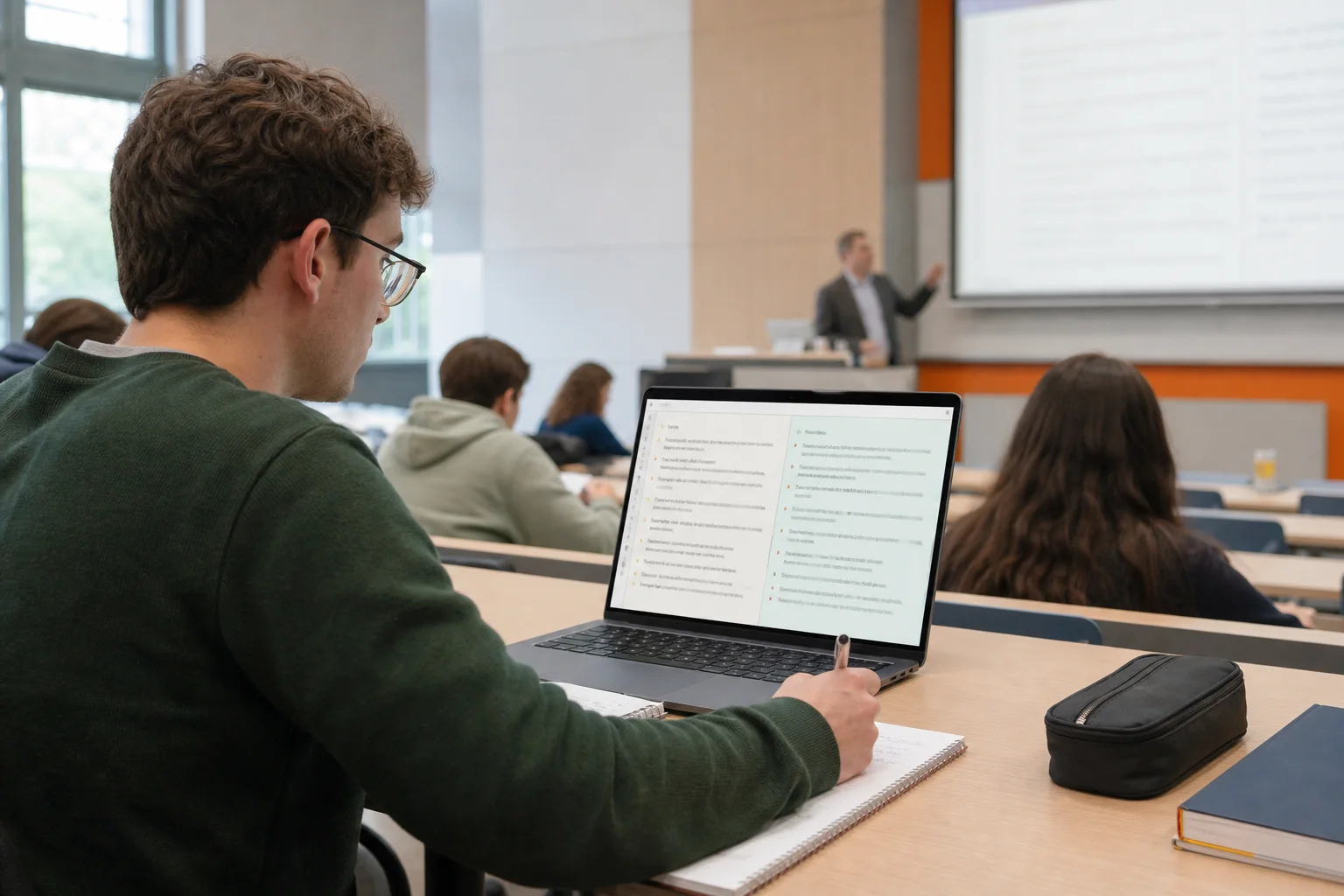
Fast speech, unfamiliar accents, and dense terminology often arrive at the same time in a lecture. LectBuddy brings live transcription, lecture translation, and post-class notes into one workspace so students can spend less time switching between tools.
When someone searches for a LectBuddy desktop app, they usually want to use LectBuddy on a Mac or Windows computer. The current product runs in the browser. You can open the LectBuddy workspace, sign in, and start without installing a separate desktop client.
What LectBuddy web and desktop mean
LectBuddy web is the browser product for students, researchers, and anyone working across languages. After signing in, you can use a microphone for live transcription or translation. You can also upload a recording and turn it into a transcript with speaker context and study notes.
LectBuddy desktop refers to using that same web workspace on a laptop or desktop computer. It is not a separate product. A larger screen gives the transcript and translation more room, which helps when you need to compare the source language with the translated text while following a class.
The features both ways of working share
Live transcription while the class is happening
LectBuddy converts microphone audio into text during a live session. Captions can help when a lecturer speaks quickly, uses an accent you are still learning, or introduces several technical terms in a short stretch. The session remains available in your history, so you can review wording that was difficult to catch in the room.
Live text should support listening, not replace it. Keep the speaker in view and use the transcript when you miss a phrase, spelling, or definition. That approach is less distracting than trying to type every sentence by hand.
Translation beside the original words
Translation mode keeps the source transcript and translated text together. You can check the lecturer's exact wording instead of reading a translation with no context. This is useful for lectures, Zoom classes, meetings with a supervisor, academic conferences, and group discussions where terminology matters.
The available source and target languages appear in the current workspace. Choose them before the session begins, then confirm that the microphone is capturing the correct room or call audio.
Recorded audio becomes study material
You can upload a lecture recording when live captions are not enough or when you already have an audio file. LectBuddy creates a full transcript, separates speakers when needed, and prepares a summary, keywords, and bilingual notes. Starting with the summary can make a long recording easier to review, while the transcript remains available for checking details.
This workflow also fits seminars and interviews. Speaker separation helps distinguish a lecturer's explanation from student questions or a participant's reply.
Sessions stay organized for later review
Each recording or live session becomes its own record. The transcript, translation, summary, and notes stay connected, so you do not have to match files from separate recording, translation, and note-taking apps. You can return to a course session later and delete your own content when you no longer need it.
Why the web version is useful
LectBuddy web opens without a local installation. If you move between a personal laptop, a library computer, and a classroom device, you can sign in and continue with the same account. Product updates appear in the browser, so there is no client updater to run before class.
Use a modern browser that has access to the microphone. On a shared computer, sign out when you finish and do not save your account credentials. Headphones can also prevent translated audio or playback from feeding back into the microphone.
When a desktop computer works best
A computer screen is especially useful for online classes and long recordings. You can place Zoom, Teams, or a course video on one side and LectBuddy on the other. The split view keeps the speaker, source transcript, and translation visible without constant tab switching.
Desktop use also makes post-class work more comfortable. A keyboard is faster for searching terminology, copying quotations into notes, and comparing a summary with the full transcript. You can keep a document open beside LectBuddy while preparing an assignment or reviewing for an exam.
Which option should you choose?
Open the web workspace when you need to start quickly or when you are using a temporary device. Use it on a Mac or Windows computer when screen space, multitasking, and keyboard work matter. Both routes lead to the same LectBuddy workflow and account history. The difference comes from the device and study environment, not a different feature set.
Check microphone permissions before a live session. You should also get permission from the lecturer, interviewer, or meeting participants before recording them.
Frequently asked questions
Do I need to download LectBuddy for desktop?
No separate desktop client is currently required. Open LectBuddy in a browser on Mac or Windows and sign in to the workspace.
Does LectBuddy web support live translation?
Yes. Select a source language and target language to view the original transcript with translated text. The language list shown in the workspace is the current source of truth.
Start using LectBuddy
The web workspace is available wherever you can sign in, while a laptop or desktop adds more room for live captions, translation, and note review. Open the LectBuddy workspace to start a session. If you need to estimate usage for several classes, check the credit and pricing guide before the course begins.